Create a group of friends, family, or workmates and take part in the 2026 Move Together Challenge together. Groups allow members to combine their steps and appear on a public leaderboard during the challenge period.
Any registered member can create a group. However, only members who have their state set to Queensland can choose to display their group in the State Challenge. Only the Group Leader has access to connect the group to the challenge.
For more details about managing groups, see: Create and Edit a Group on the Website.
If you have over 20 participants, register your organisation and create a Tournament.
How to Create and Connect a Group
- Select the My Dashboard dropdown and select Groups.
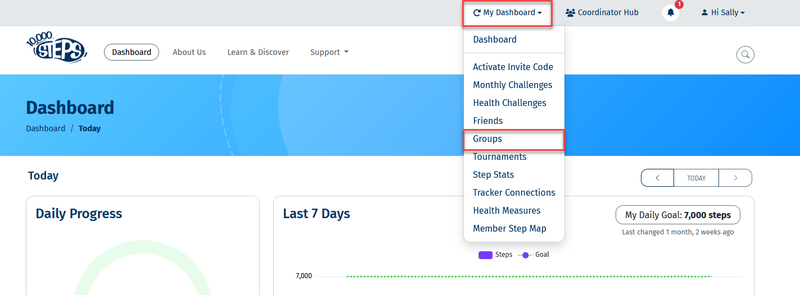
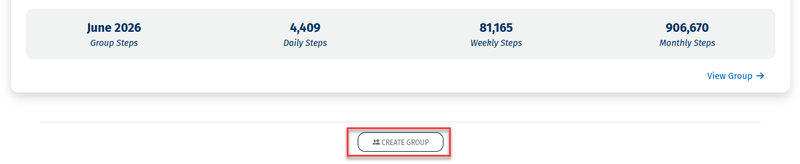
- On the Groups page, scroll down and click Create Group.
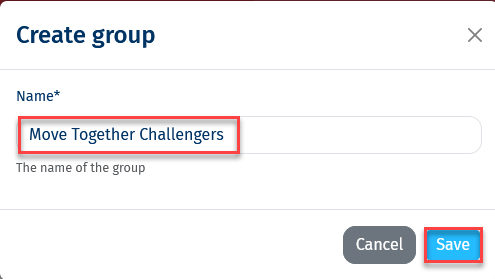
- Enter a Group Name and click Save.
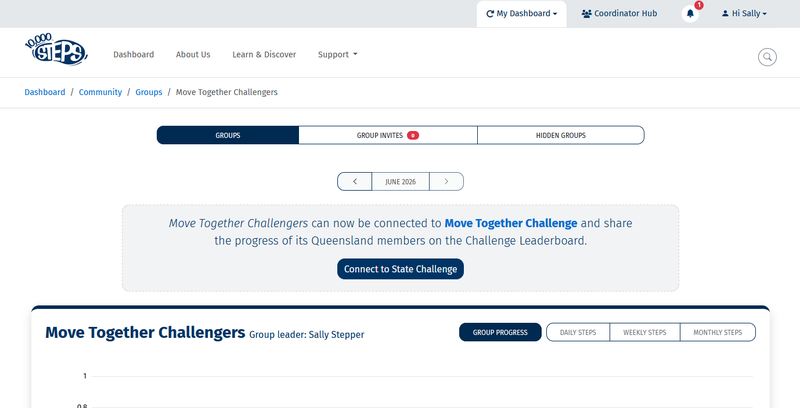
- Select Connect to the State Challenge.
- Update your Group Display Name if needed, then select the State Challenge from the dropdown menu.
- Your group will appear on the State Challenge once it starts (3 August – 13 September).
- Total group steps during this period will be displayed on a public leaderboard, along with the number of participants.
- No individual member data will be shown.
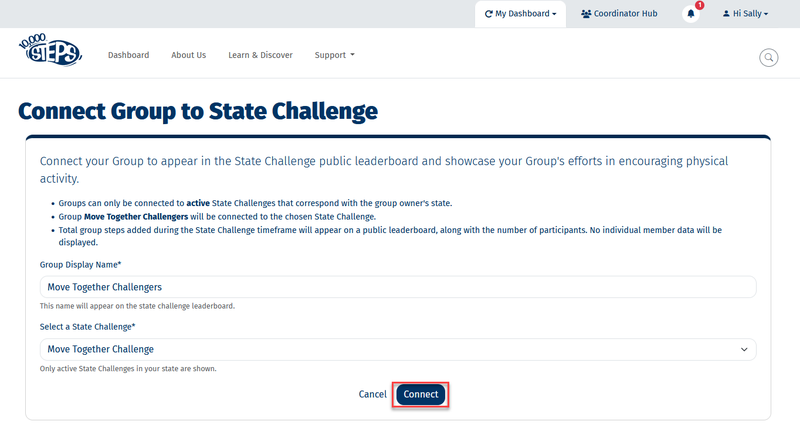
- Select Confirm Connection.
- Your group will now be connected and visible on the State Challenge leaderboard once the challenge begins.

Next, Add Members to Your Group
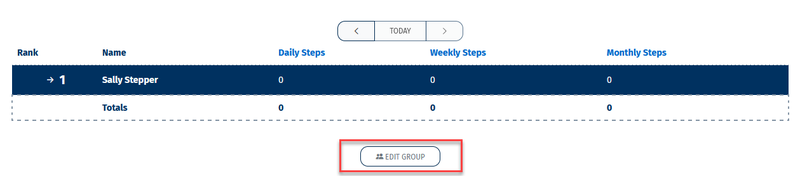
- Select Edit Group.
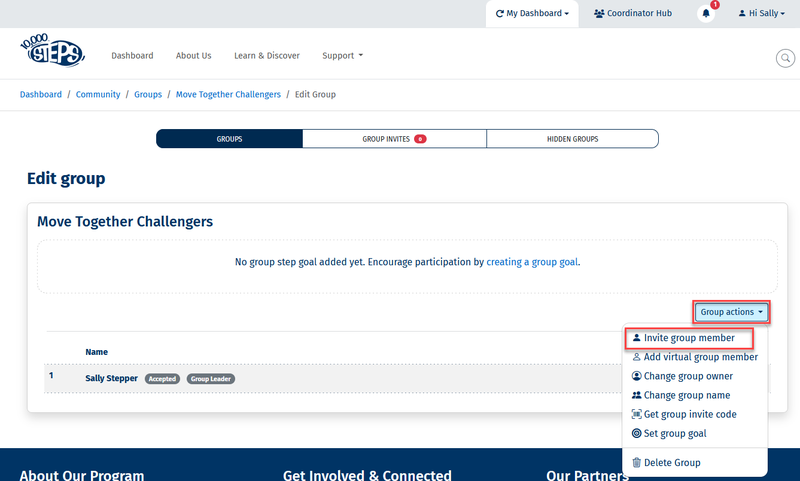
- Go to Group Actions and select Invite Group Member.
- Enter the member’s email address and click Save.
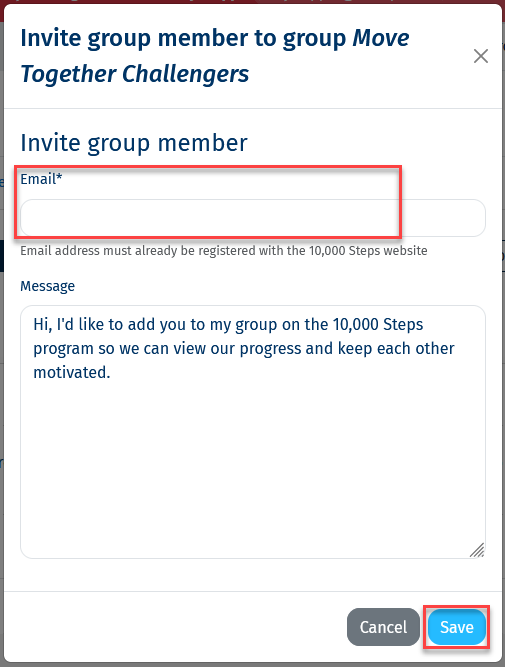
Note: The person must already be registered with the 10,000 Steps program before they can be added. Visit Create and Edit a Group on the Website for more information.